The following is a column from the September 2026 PRINTING United Journal
If you’ve ever opened a client-supplied PDF and wondered what you were looking at, you’re not alone. The self-contained structure that makes a PDF so portable can also make it feel like a black box. For anyone working in print production, knowing what’s inside that box can be the difference between a job that flows cleanly to press and one that falls apart in prepress.
Three elements are worth understanding: page boxes, metadata, and file structure.
The Page Box Puzzle
Think of page boxes as the geometry rules of a PDF. These invisible boundaries define what gets displayed, what gets printed, and where ink should stop or extend. Acrobat doesn’t surface them by default, and most designers may not realize they exist. In print production, however, they matter.
There are five types of page boxes:
- Media Box — the full physical dimensions of the PDF. Everything else is defined relative to this.
- Crop Box — defines the visible or printable area. In files from less careful sources, this is often the only box defined.
- Trim Box — the finished page size after cutting. This is the number your imposition and finishing workflows depend on.
- Bleed Box — how far artwork extends beyond the trim, typically 1/8 inch or more.
- Art Box — marks the intended content area, though it’s rarely relevant in most print workflows.
Have you ever had a file that looked like it had bleed but didn’t output correctly? If so, the answer is usually buried in the page boxes. Acrobat’s Output Preview tool and Enfocus PitStop Pro can both surface and edit these values — just make sure the “Show art, trim, & bleed boxes” is selected (see Figure 1). Visible bleed and defined bleed aren’t the same thing. Always check.
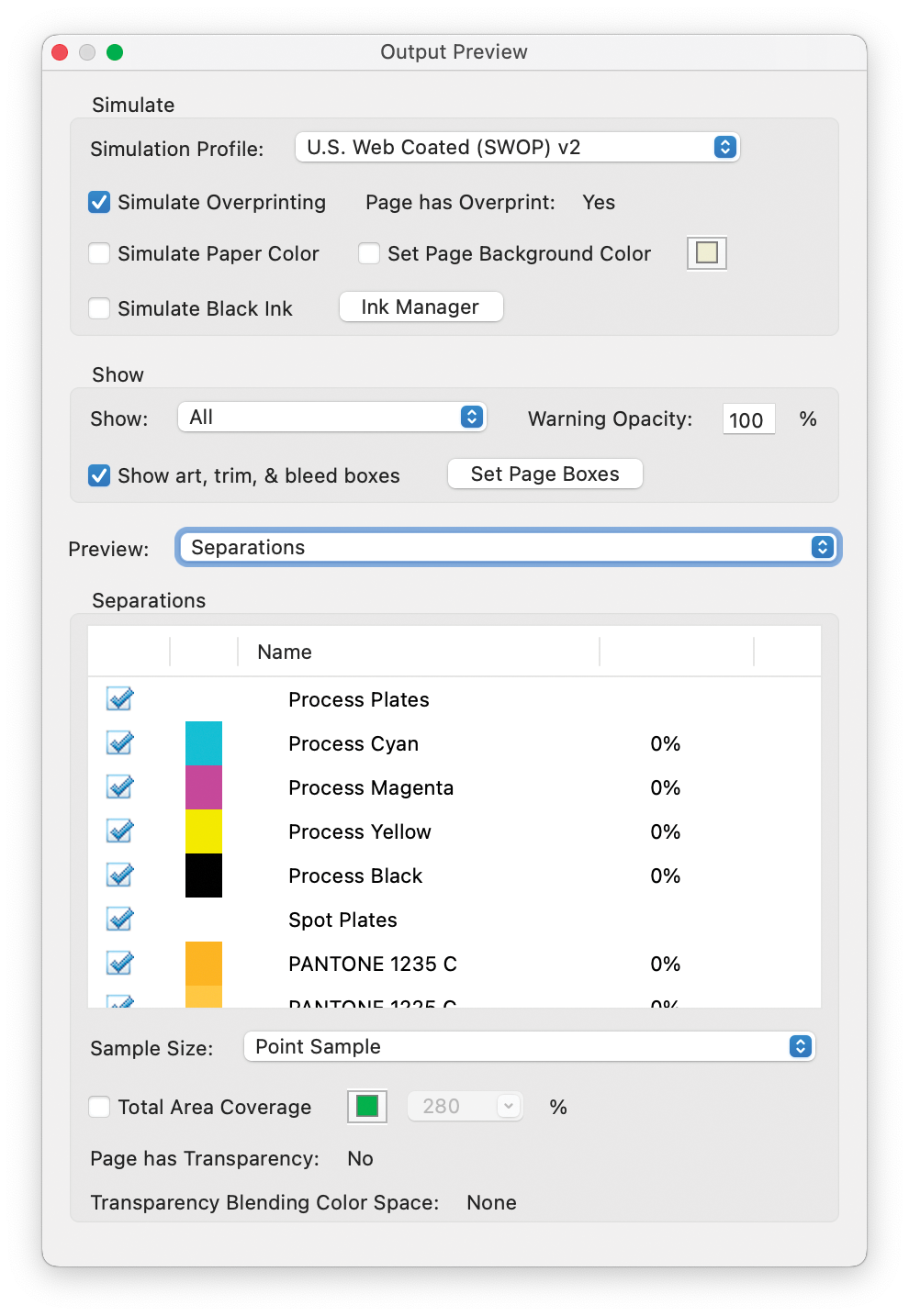
Figure 1: With “Show art, trim & bleed boxes” enabled, the Output Preview tool reveals the location of each defined page box in the PDF. | Credit: PRINTING United Alliance
Metadata: More Than a Digital ID Card
PDF metadata isn’t just useful for archivists. It can carry production data, job ticketing information, authorship, version history, and embedded ICC profiles. When it’s used well, metadata supports approvals, improves traceability, and can drive workflow automation.
Three areas are worth checking in any production PDF:
- Document Properties — File > Document Properties in Acrobat tells you who created the file, what application made it, and which PDF version you’re working with (see Figure 2). If the producer listed is “PDFWriter,” treat that as a warning sign and dig deeper.
- Embedded Fonts and Resources — The Fonts tab in Document Properties shows whether fonts are fully embedded, subset, or substituted. Unembedded fonts are a common cause of RIP errors. Catch them before the file goes downstream.
- XMP Metadata — Adobe’s XML-based extensible metadata platform lives under the Description tab in Document Properties (click Additional Metadata). It can include technical specs, keywords, and custom job-tracking fields. Designers rarely touch it, but it’s often valuable for automated workflows.
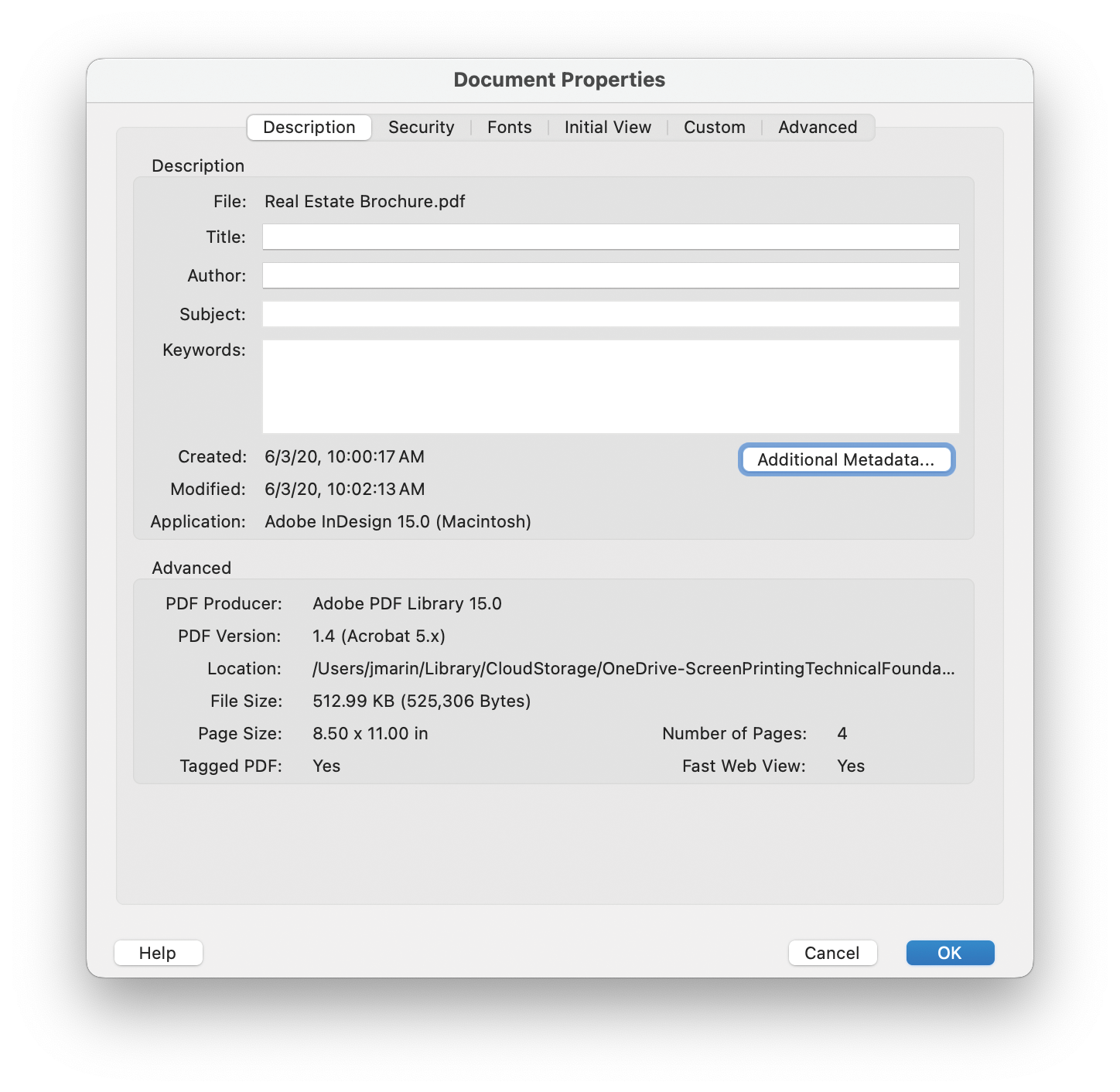
Figure 2: Document Properties shows how a PDF was created, what produced it, and other key technical details. | Credit: PRINTING United Alliance
File Structure: How PDFs are Built
At its core, a PDF is a container built on an Adobe PostScript foundation, but is significantly more capable. Most production PDFs are created one of two ways:
- PostScript-based printed to file, then processed through Acrobat Distiller — not many shops still work this way, but it shaped how we think about PDF output.
- Direct export from applications such as InDesign or Illustrator using the Adobe PDF Library.
The difference matters. Distiller-based PDFs go through a translation step that mimics what your RIP will see — transparency is flattened, and output tends to be more predictable in traditional environments.
Direct exports preserve live transparency, layers, and structure, which works well in modern workflows using the Adobe PDF Print Engine, but can create problems if your RIP isn’t current.
Knowing how a file was created can help you judge whether it’s ready to run or needs preflight work first. Acrobat’s Document Properties can tell if the file came from Distiller, InDesign, Illustrator, or something less reliable.
Why This Matters in Practice
The internals of a PDF have real production consequences. Page boxes tell your RIP where to image, metadata helps workflow automation, and file structure influences how reliably a job runs through production.
Most content creators aren’t building PDFs with press output in mind. Rather, they’re focused on what the file looks like on screen — not how it will separate, trap, bleed, or overprint. That gap tends to land in the laps of printers. With a working knowledge of what’s inside a PDF, you’re in a much better position to catch problems early and keep jobs moving.
Go Deeper With iLEARNING+
For a thorough look at PDF print workflows, trapping, and transparency handling, or to learn how to get more out of Acrobat, check out the eLearning course: “Acrobat Tools for Print Production” at ilearningplus.org.
To learn more about training, eLearning courses, and other educational opportunities available to members for free or at a discounted rate, contact 888-385-3588 / membership@printing.org.